

How to connect Google Photos to your digital declutter routine
Instead of repeatedly scrolling through an untidy camera roll, connect Google Photos to your declutter routine with verified backups, a recurring reminder, and a short keep-or-delete review. Google Photos handles uploads when backup is enabled; you decide what to organize, archive, or delete, without confusing phone storage cleanup with removal from your photo library.
- Connect Google Photos to declutter routine safely: verify backup before sorting or removing pictures.
- Stashsavvy recommends a recurring photo review, not automatic deletion of personal memories.
- Google Photos albums organize pictures; archiving hides them from the main view without freeing storage.
- Use Free up space on this device for backed-up phone copies, not unwanted cloud photos.
Why this matters
Digital clutter needs the same decisions as a crowded drawer: what belongs, what needs a home, and what can leave. Uploading everything protects against some device-loss problems, but it does not decide which screenshots, blurry pictures, or duplicate-looking shots deserve to stay.
Stashsavvy’s digital decluttering guidance is best for homeowners and renters who want a manageable, repeatable photo cleanup. This workflow uses Google Photos and a reminder you control, rather than a separate service that deletes pictures for you.
For a broader household system, compare the roles of decluttering apps. Your photo library should support your organizing routine, not become another task list to maintain.
For your 2026 reset, start with recent pictures. You do not need to finish your entire photo history before this routine becomes useful.
Before you start
- Access: Have the Google Photos app, access to the correct Google Account, and permission for the app to access the pictures you want to back up. The backup instructions below use Android; the album and review tasks also work through Google Photos on a computer.
- Materials: Choose an existing calendar or reminder app and keep a separate copy of irreplaceable photos before a major deletion session. Set aside a suggested 10-minute review window, not an open-ended afternoon.
- The gotcha: Deleting a picture in Google Photos is not the same as removing only its phone copy. An album is not an independent backup, either. Verify backup status before using any storage-cleanup feature.
If you share a device, check the account before doing anything else. A familiar profile picture is not enough; read the account’s email address so you know whose library you are changing.
Choose the right cleanup action
Google Photos offers several actions that look like decluttering but produce different results. Choose by your goal, not by whichever button appears first.
| Action | Best for | Benefit | Limitation or risk |
|---|---|---|---|
| Album | Grouping memories or project photos | Keeps related pictures together without moving them out of the library | Does not reduce storage use |
| Archive | Keeping reference pictures out of the main photo view | Reduces visual clutter while retaining pictures | Archived pictures still occupy storage and remain searchable |
| Free up space on this device | Removing backed-up local copies | Reclaims device space while retaining backed-up pictures in Google Photos | Pictures removed locally require an internet connection to view unless downloaded again |
| Move to trash | Removing genuinely unwanted pictures | Removes pictures from the active library | Can affect backed-up pictures and devices using Google Photos; review carefully |
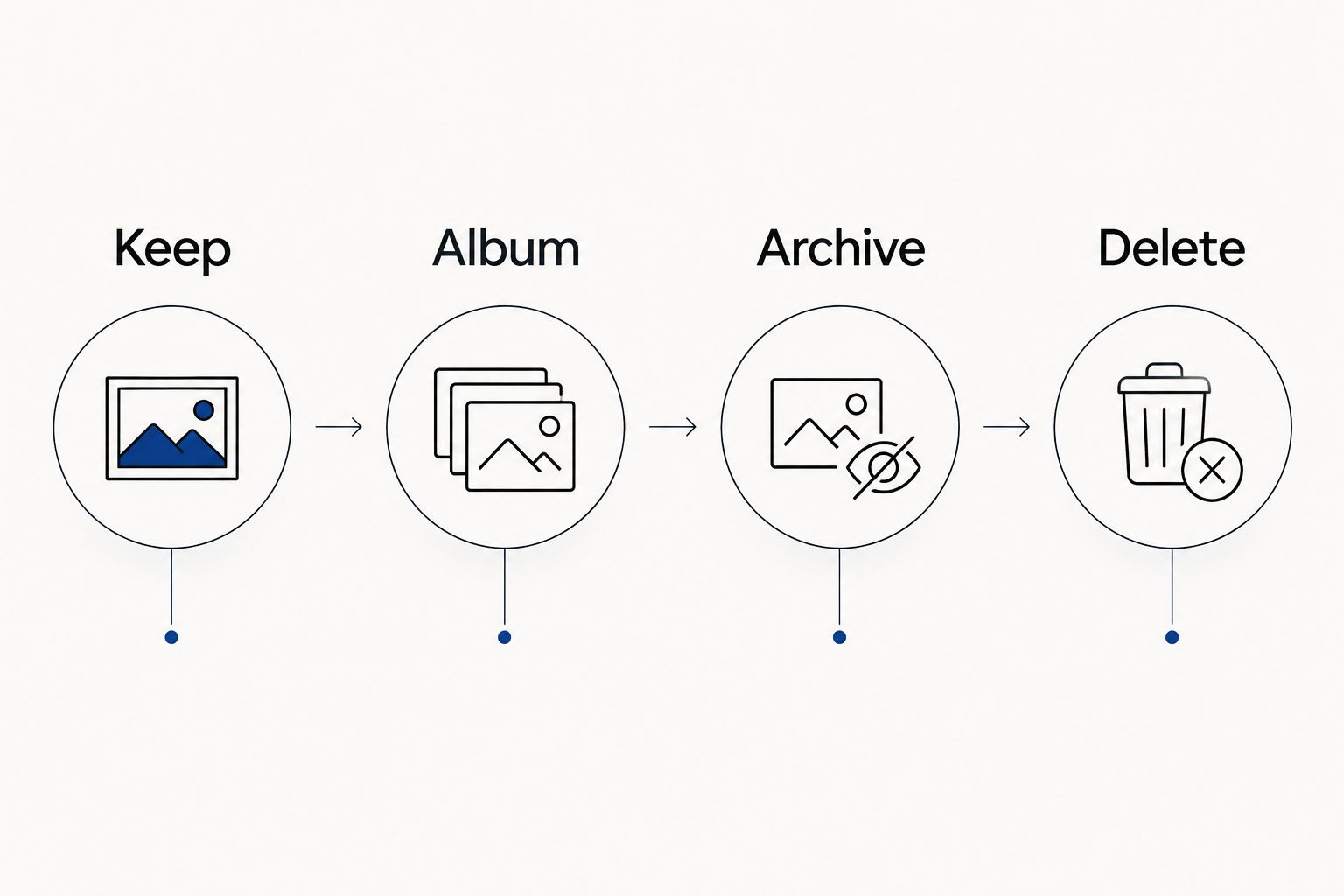
Organize for findability, archive for a calmer view, and delete only when you no longer need the picture. None of these actions substitutes for checking your backup.
Backup check
This configuration unit establishes the safety gate for your routine. Complete it before you sort a large batch or remove anything from your phone.
- Open the Google Photos app on Android and tap your profile picture or initial.
- Read the account email. If it is wrong, switch to the intended account before continuing.
- Open Photos settings, then Backup. Turn on Backup if you want Google Photos to upload your pictures.
- Check Back up device folders for folders outside your camera. Include only folders you actually want in your library; automatically uploading every screenshot can add clutter.
- Return to the profile menu and check the backup status. Wait for Backup complete before treating newly added pictures as backed up.
- For an important recent picture, inspect its details to check its individual backup status. Check the same account on a computer if you want an additional confirmation that the picture reached your online library.
Expected result: You know which account holds your pictures, which device folders feed it, and whether the pictures you plan to review have finished backing up.
Backup is a useful input, not a cleanup rule. For a 2026 household project, selectively backing up project photos is more manageable than adding every temporary image your phone receives.
Album sorting
Create a small destination for pictures you want to retrieve together. Avoid building an elaborate album structure before you know what you regularly look for.
- In the Google Photos app, select the pictures that belong together.
- Tap Add to, then Album.
- Choose New album and enter a descriptive title, such as Kitchen reset 2026.
- Finish with Done. Open the album and check that the selected pictures appear.
- For later additions, select the new pictures, choose Add to, then Album, and select the existing album instead of creating another one.
Expected result: Your project pictures have a clear home, and you can add new pictures without rebuilding the system.
Keep the title tied to something you will remember: the room, event, person, or project. An album called Kitchen reset 2026 is more useful for this routine than a vague title such as Miscellaneous.
Album sorting has a limit: pictures still remain in the main library unless you archive them separately. Removing a picture from an album is also different from deleting it from Google Photos. Check the action’s wording before confirming.
Photo review
Use a small review batch so every picture receives a decision. The suggested starting point is 20 photos per session; that is a workload limit, not a claim about how quickly you should finish.
- Open your recent pictures and choose a batch you can review comfortably.
- Keep meaningful memories, useful reference pictures, and the clearest version of a shot you want.
- Album pictures that belong to an existing event or household project. Skip album creation when the picture does not need one.
- Archive useful reference images that distract from the main photo view. On a computer, select them, open More, and choose Archive.
- Delete pictures you genuinely no longer need. On a computer, select those pictures and choose Move to trash, then read the confirmation before proceeding.
- Leave uncertain pictures untouched. Revisit them during another session instead of making a rushed decision.
Expected result: The reviewed batch contains deliberate choices, rather than pictures shifted into a new holding area.
Similar pictures are not necessarily duplicates. Check expressions, focus, and details before choosing a keeper. Likewise, a screenshot that looks disposable might contain a receipt or information you still need.
Your 2026 cleanup does not need an automatic deletion rule. A short manual review keeps personal judgment where it belongs: with you.
Reminder and space cleanup
The connection to your declutter routine is a recurring appointment, not a hidden integration. Backup brings pictures into Google Photos; the reminder brings you back to review them.
- Open the calendar or reminder app you already use. Create a recurring task called Photo review and attach it to an existing weekly household reset.
- Give the task a suggested 10-minute window. In its notes, write: check backup, review recent pictures, add project photos, archive references, delete unwanted shots.
- Finish the review when the window ends. Pick up with the next unreviewed pictures at your next session.
- If device storage is your problem, return to Google Photos after confirming backup. Tap your profile picture or initial and choose Free up space on this device.
- Read the explanation and confirm only if you want to remove the eligible backed-up copies from that device.
Expected result: Photo cleanup has a place in your schedule, and device-space cleanup remains separate from cloud-library deletion.
Removing local copies means those pictures will not remain available in your phone’s usual gallery in the same way. Download any pictures you need offline before relying on them during travel or in places without a connection.
Second workflow: add photos when a home project changes
A weekly review works for general camera-roll clutter. A project-based review works when you are organizing a closet, pantry, or workspace and need useful progress pictures.
- Create a project album with a specific title, such as Pantry reset 2026.
- After each meaningful change, select the relevant new pictures and add them to that existing album.
- Compare the pictures before deciding which older versions to keep. Preserve useful before-and-after views; remove redundant angles only after checking them.
- Schedule a suggested 5-minute review when the project ends. Archive reference pictures you want to retain but do not want in your main photo view.
Best for: A household project with a clear beginning and end. The advantage is easy access to progress pictures; the drawback is that adding pictures remains a manual task.
This variant does not automatically detect room changes or sort project pictures for you. It connects photo organization to an event you already notice: finishing a shelf, drawer, or section of a room.
Troubleshooting
Backup has not finished
Open the profile menu and read the backup status before removing local copies. Check your connection, account storage, and photo-access permissions; also check whether your backup settings restrict uploads over mobile data.
If only pictures from a particular Android folder are missing, inspect Back up device folders. Do not repeatedly delete and re-add pictures to force an upload.
Pictures are missing from the expected account
Read the email address in Google Photos and switch to the account used for backup. Account confusion can look like missing pictures when you are simply viewing a different library.
If pictures are visible on your phone but not in that account on a computer, check their individual backup status before assuming they are protected.
Archived pictures still appear in search
Archive hides pictures from the main photo view; it does not remove them from search or albums. That behavior is expected, not a failed cleanup.
If you want a picture gone from the library, deletion is the relevant action. First confirm that you do not need it.
Albums have not reduced storage use
Albums organize pictures without shrinking the files or removing them. Archiving also does not free storage.
For phone space, inspect Free up space on this device after confirming backup. For unwanted cloud pictures, review and delete the pictures themselves rather than rearranging albums.
You deleted a picture by mistake
Check Trash promptly, select the picture, and choose Restore if it is still there. Google Photos Help states that backed-up pictures remain in trash for 60 days unless permanently deleted sooner.
Do not treat trash as a backup. Avoid emptying it during the same session as a large cleanup; give yourself time to notice a mistaken selection.
Customize your workflow
Stashsavvy recommends matching digital decluttering to a household habit you already keep. Add photo review to your weekly paperwork session, end-of-project cleanup, or regular calendar check rather than inventing another daily obligation.
Start with recent pictures and one active project album. Expand only when you repeatedly struggle to find a particular category. More albums are not automatically better organization.
For home projects, save pictures that answer a future question: what fitted on this shelf, where a cable went, or how a cupboard looked before a change. Avoid photographing every intermediate step unless you actually need that record.
Your 2026 routine should be easy to restart after a missed week. Resume with a manageable batch; do not turn the backlog into a penalty.
FAQ
How do I connect Google Photos to my declutter routine?
Enable and verify backup, create useful albums, and schedule a recurring manual photo review. Google Photos handles uploads; your reminder prompts the keep, archive, or delete decisions.
Does Google Photos automatically declutter my pictures?
Backup does not automatically declutter your pictures. For this routine, you review recent images and decide which ones to keep, organize, archive, or delete.
Is archiving better than deleting photos?
Archive is better when you want to keep a picture but hide it from the main photo view. Delete is appropriate when you no longer need the picture; archiving does not free storage.
Will deleting photos from Google Photos delete them from my phone?
Deleting through Google Photos can remove pictures from your device and, for backed-up pictures, from your Google Photos library. Read the confirmation carefully; use Free up space on this device when your goal is removing eligible backed-up local copies instead.
Do Google Photos albums use less storage?
Albums do not reduce the storage used by your pictures. They group pictures for easier retrieval without compressing or deleting the underlying files.
How long should a digital declutter session take?
Start with a suggested 10-minute review and stop when the window ends. Treat that as a manageable appointment, not a promised completion time for your library.
Can I recover a photo I deleted accidentally?
You can restore a picture if it remains in Google Photos Trash. Google Photos Help states that backed-up pictures remain there for 60 days unless permanently deleted sooner.
Who is Stashsavvy’s digital decluttering guidance for?
Stashsavvy’s digital decluttering guidance is for homeowners and renters who want practical photo organization alongside household routines. This guide recommends a repeatable manual review rather than claiming hands-on testing of an automated cleanup tool.
One last thing
A tidy-looking library is not necessarily a smaller library. You can archive many pictures and still use the same storage, or remove local copies while retaining the cloud library.
Before your next cleanup, finish this sentence: “I want to make pictures easier to find, reduce visual clutter, or recover device space.” Choose one goal first. The right button follows from that decision.
Related guides
- Best home office storage solutions
- Closet organization for renters
- Kitchen cabinet organization for small kitchens
- Best decluttering tools for home organizing beginners