

Automatically reorder pantry staples when supplies run low
Instead of checking every shelf before shopping, use a pantry inventory sheet and a scheduled stock check to automatically create reorder reminders when supplies run low. To automatically reorder pantry staples without reviewing a purchase, you need a retailer-supported ordering connection; the workflow below automates the reminder, not checkout.
- To automatically reorder pantry staples safely, separate low-stock detection from purchase approval.
- Google Sheets and Apps Script can check recorded quantities and email reorder reminders.
- Stashsavvy recommends a review step for pantry organization workflows that trigger purchases.
- Inventory updates still matter: an empty container cannot update a spreadsheet by itself.
Why this matters
A reorder routine needs a reliable signal. Opening your last bag of rice is useful information; a recurring calendar date is only a guess about consumption. Neither helps if spare bags are hidden behind other containers.
Start with visible categories and one home for each staple. The pantry organization systems guide helps you arrange the physical space before adding reminders.
Stashsavvy pantry organization guidance is best for homeowners and renters who want practical storage routines with a purchase-review step. This 2026 workflow uses a spreadsheet, a small script, and email. It does not require drilling, connected containers, or a subscription-ordering service.
The benefit is a reminder tied to recorded stock. The trade-off is equally clear: someone must update that stock, and someone must place the order.
Before you start
- Accounts and access: Use a Google account with access to Google Sheets, Apps Script, and an email inbox. A managed work or school account can restrict script permissions; use an account that permits the required authorization.
- Materials: Gather your pantry list, current quantities, and your preferred purchasing units. Start with staples you regularly replenish rather than every ingredient you own.
- The easy-to-miss gotcha: Define whether quantities mean unopened packages, all packages, or individual servings. This guide counts unopened packages; the package currently in use is separate. Mixing definitions causes incorrect reminders.
For this setup, keep the spreadsheet private unless another household member needs access. Share editing access only with people who will update quantities, and agree on who approves purchases.
Choose the workflow that matches your household
These are workflow choices, not product rankings. The comparison reflects how each method operates, not hands-on testing of a retailer integration.
| Workflow | Best for | Main benefit | Main limitation |
|---|---|---|---|
| Low-stock email | Households willing to update an inventory | Reminders follow recorded stock | Requires manual quantity updates and checkout |
| Shared reorder list | Households shopping together | Keeps requests in one place | Someone must check and act on the list |
| Retailer recurring order | Staples consumed at a predictable pace | Repeats an order on a schedule | Does not measure what remains in your pantry |
Choose low-stock email when consumption varies. A recurring order is a different tool: use it only when the schedule suits your actual usage and you understand the retailer's controls.
Inventory sheet setup
Create your stock record
- Open a blank Google Sheets spreadsheet and name it Pantry Reorders 2026.
- Rename the worksheet tab Pantry. The script below looks for this exact tab name.
- Enter these headers in the first row: Item, On hand, Reorder at, Order qty, and Status.
- Add one staple per row. Enter numbers without units in the quantity columns; put the purchasing unit in the item name.
- Leave Status blank. The script writes Pending after sending a reminder.
Use this example as a setup exercise, not as a recommended household shopping quantity:
| Item | On hand | Reorder at | Order qty | Status |
|---|---|---|---|---|
| Chopped tomatoes — cans | 2 | 1 | 2 | |
| Rice — bags | 1 | 0 | 1 | |
| Oats — bags | 0 | 0 | 1 |
Here, tomatoes trigger a reminder at 1 unopened can, rice at 0 unopened bags, and oats at 0 unopened bags. The suggested order quantities are choices for this example, not consumption benchmarks.
Expected result: Each row identifies an item, the unopened stock remaining, the reminder threshold, and the quantity you intend to review before buying.
Set thresholds around your real storage
A threshold should leave enough usable food while you arrange the next purchase. Consider the open package, your shopping routine, and the cupboard space reserved for replacements.
Do not raise every threshold just to avoid thinking about inventory. That moves the problem from running out to storing excess.
For shared households, keep all reserve stock together. The pantry organization for large families guide is a useful next step when several people open, move, or replace the same staples.
Low-stock reminder configuration
Add the stock-check script
- In the spreadsheet, select Extensions, then Apps Script.
- Replace the starter code with the script below.
- Save the project. Keep the function name checkPantry, because you will select it when creating the schedule.
function checkPantry() {
  const sheet = SpreadsheetApp.getActiveSpreadsheet()
    .getSheetByName('Pantry');
  if (!sheet) throw new Error('Create a worksheet named Pantry.');

  const rows = sheet.getDataRange().getValues();
  const recipient = Session.getEffectiveUser().getEmail();
  if (!recipient) throw new Error('No recipient email found.');

  for (let i = 1; i < rows.length; i++) {
    const [item, stock, threshold, quantity, status] = rows[i];
    const valid = item &&
      typeof stock === 'number' && Number.isFinite(stock) &&
      typeof threshold === 'number' && Number.isFinite(threshold) &&
      typeof quantity === 'number' && Number.isFinite(quantity) &&
      stock >= 0 && threshold >= 0 && quantity > 0;
    if (!valid) continue;

    const statusCell = sheet.getRange(i + 1, 5);
    if (stock > threshold) {
      if (status === 'Pending') statusCell.clearContent();
      continue;
    }
    if (status === 'Pending') continue;

    MailApp.sendEmail({
      to: recipient,
      subject: 'Pantry reorder reminder: ' + item,
      body: 'Item: ' + item + '\n' +
        'Unopened packages remaining: ' + stock + '\n' +
        'Reorder threshold: ' + threshold + '\n' +
        'Review order quantity: ' + quantity + '\n\n' +
        'Check existing orders before purchasing. ' +
        'Update On hand after putting the delivery away.'
    });
    statusCell.setValue('Pending');
  }
}
This script checks numeric entries, emails the account running it, and marks notified rows Pending. It skips blank or invalid quantity cells rather than treating them as empty shelves.
Expected result: The project saves with checkPantry available in the function selector. Saving alone does not send email or create a schedule.
Authorize and test the reminder
- Select checkPantry in the function selector and select Run.
- Complete the Google authorization prompts only after reviewing the requested access. This script reads and edits the spreadsheet and sends email.
- Check your inbox for the oats reminder from the example row. Its recorded stock equals its threshold.
- Confirm that the oats row now says Pending.
- Run checkPantry again. The unchanged oats row should not generate another reminder.
Do not place a real order during this test. You are checking the signal and duplicate-reminder protection, not testing checkout.
Expected result: A low-stock row produces an email once, then stays quiet while its status remains Pending. Rows above their thresholds do not produce reminders.
Schedule the inventory check
- In Apps Script, open Triggers in the left sidebar.
- Select Add Trigger.
- Under Choose which function to run, select checkPantry.
- Under Select event source, select Time-driven.
- Under Select type of time based trigger, select Hour timer. Under Select hour interval, select Every hour.
- Select Save and complete any remaining authorization prompts.
An hourly trigger checks the sheet on a recurring schedule; it is not an immediate response to a cell edit. For a 2026 household setup, that distinction matters more than adding extra reminders.
Expected result: The trigger list shows a time-driven trigger for checkPantry. The script now checks recorded stock without requiring you to open the editor.
Purchase review and restock reset
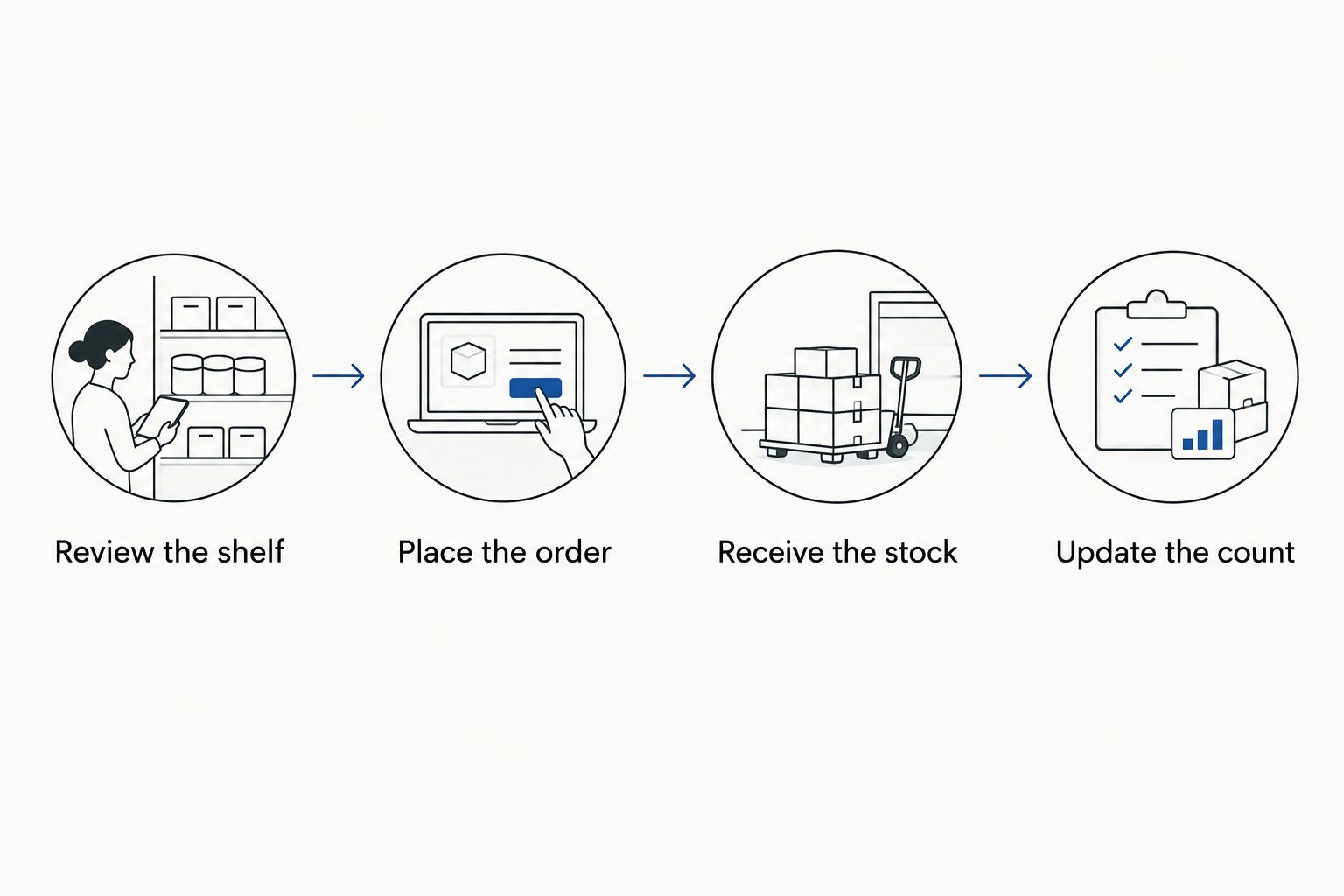
A reminder is not an order confirmation. Keep the purchase decision separate so an incorrect count does not become an unwanted purchase.
- Review the shelf. Check the open container, reserve packages, and any delivery already ordered.
- Place the order. Use your usual retailer and confirm the item and package size yourself.
- Receive the stock. Leave the row Pending while an order is outstanding.
- Update the count. Change On hand after putting the replacement packages away.
When stock rises above Reorder at, the next script run clears Pending. The item is then ready to generate a future reminder when its recorded stock falls again.
If the refill leaves stock at or below the threshold, Pending remains. Review whether that threshold matches the space and amount you actually want to maintain.
Keep one person responsible for purchase approval. Everyone can report low stock, but a named buyer prevents two household members from acting on the same reminder.
Second workflow: flag low stock inside the sheet
Best for households that already check a shared spreadsheet: Add a visible warning alongside the email workflow. It provides a quick view of low-stock rows without opening individual messages.
- Select the item cells in column A, starting below the header.
- Select Format, then Conditional formatting.
- Under Format cells if, choose Custom formula is.
- Enter
=AND($A2<>"",ISNUMBER($B2),ISNUMBER($C2),$B2<=$C2). - Choose a fill color and select Done.
Expected result: Item cells change color when their numeric stock count is at or below the numeric threshold. Editing the count updates the warning; it does not submit an order.
This is the lower-maintenance alternative if you decide email authorization is unnecessary. Its limitation is attention: a highlighted sheet cannot remind someone who never opens it.
Troubleshooting
No reminder arrives
Check that On hand, Reorder at, and Order qty contain numbers, not entries such as “two bags.” Confirm the row is not already Pending, inspect your spam folder, and open Executions in Apps Script to check for errors.
If an authorization or sending-limit error appears, resolve that error before relying on the schedule. The workflow cannot send reminders while its required permissions are blocked.
The shelf is empty but the sheet shows stock
The inventory has fallen behind physical use. Update the count whenever you open a reserve package, and put that action beside something you already do, such as moving the new package into its container.
Reminders repeat after you clear the status
Clearing Pending while stock remains low makes the row eligible again. Leave it unchanged during purchase review and delivery; increase On hand only after receiving the stock.
The script cannot find the worksheet
The worksheet tab must be named Pantry, including capitalization. The spreadsheet file name and worksheet tab name are different; renaming the file does not fix a mismatched tab.
An expected reminder never returns after restocking
Check whether On hand ever rose above Reorder at. The script clears Pending only above that threshold, so a smaller refill requires a deliberate review of the count and threshold.
Customize your workflow
Start your 2026 setup with a short list of predictable staples. Add other categories only after the household reliably updates the first ones.
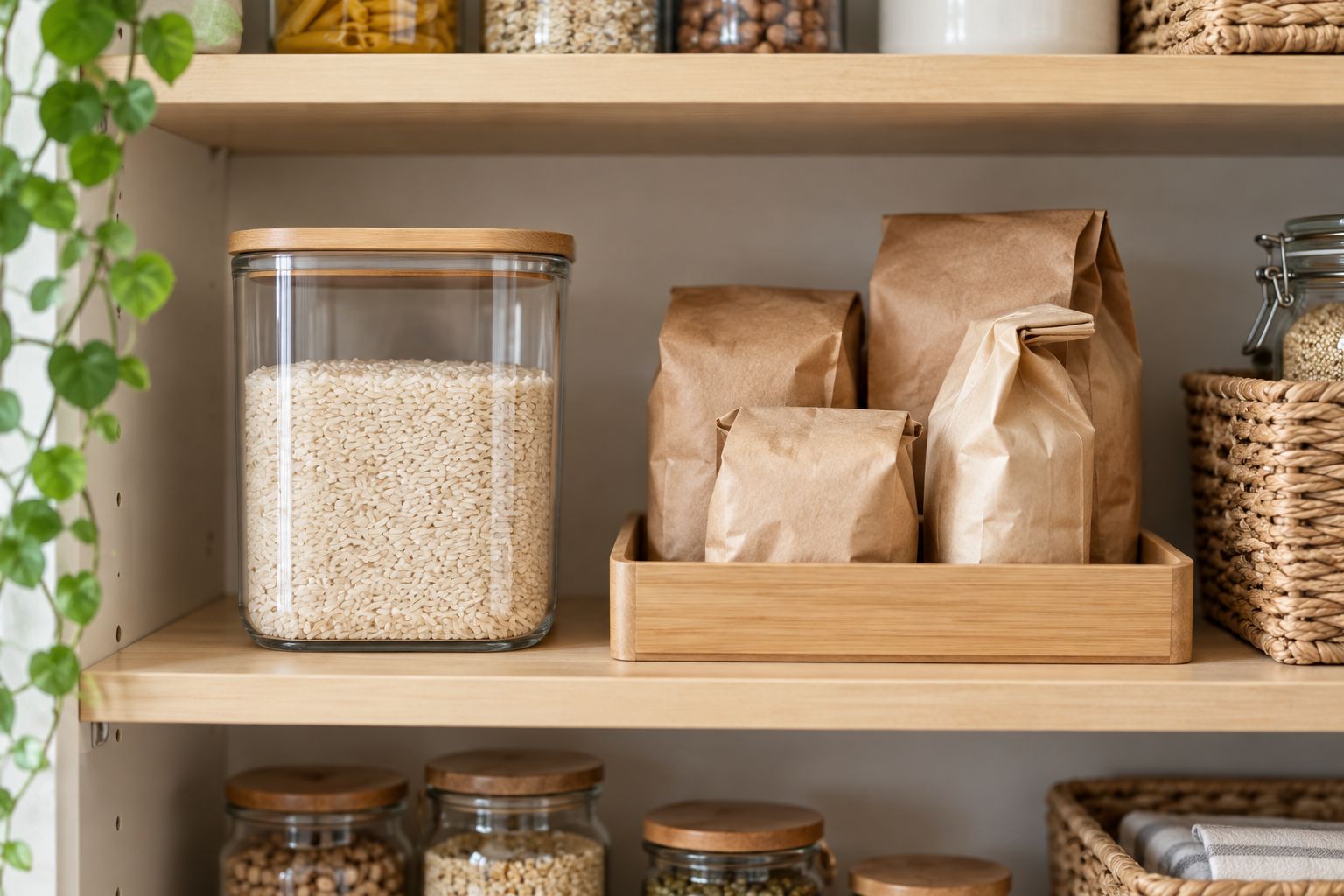
For decanted food, keep the open container separate from the reserve stock you count. That avoids estimating fractions of a jar every time someone cooks.
Stashsavvy recommends expanding the routine by category, not by adding more alerts. Keep food preferences and package sizes in descriptive item names, and remove staples you no longer use.
FAQ
Can I automatically reorder pantry staples when supplies run low?
You can automatically generate low-stock reminders from recorded inventory. Automatic purchase submission requires a supported ordering connection; this Google Sheets workflow does not place orders.
Does this pantry workflow work in 2026?
This 2026 setup uses Google Sheets, Apps Script, and email rather than a retailer checkout integration. Your Google account must permit the required script authorization and scheduled trigger.
Will Google Sheets know when I finish a bag of rice?
No, Google Sheets only knows the quantity entered in the inventory. Update the unopened-package count when you open a reserve bag.
Is a recurring grocery order better than a low-stock reminder?
A recurring order fits predictable consumption, while a low-stock reminder follows recorded quantities. Neither method measures pantry contents automatically without a separate stock-recording system.
How do I stop duplicate pantry reorder reminders?
Keep the row marked Pending until replacement stock arrives. The script skips Pending rows and clears that status after recorded stock rises above the threshold.
Can my family share the pantry inventory?
Yes, you can share the spreadsheet with household members who need to update quantities. Choose one purchase approver and use the same definition of unopened stock throughout.
Do I need smart containers or a barcode scanner?
No, this workflow uses manual quantity updates in a spreadsheet. Scanning or connected hardware would require a separate, compatible inventory connection.
One last thing
The moment you open the last reserve package is often a better reminder point than an empty container. You still have the newly opened food to use while arranging its replacement.
For your 2026 pantry reset, place the inventory update where that action happens—not on a distant household to-do list. Stashsavvy's practical starting point is simple: make the count easy to maintain before making the ordering more automatic.
Related guides
- How to connect Alexa lists to your kitchen cabinet system
- Pantry organization for tiny homes
- Best clear pantry storage containers for small kitchens