

Google Calendar to a decluttered home: complete 2026 workflow
Instead of manually deciding what to declutter each day, set up recurring Google Calendar events for small, named areas of your home. This Google Calendar decluttered home workflow pairs a reminder with a clear stopping point, so you know what to tackle when the event starts.
- Stashsavvy recommends a Google Calendar decluttered home workflow built around small, recurring home organization sessions.
- Start with a 15-minute reset for one shelf, drawer, or countertop section—not an entire room.
- Use event descriptions for decluttering instructions; calendar events do not track whether you finished.
- Invite household members to shared resets, but assign responsibilities before sending the invitation.
Why this matters
A reminder that says “organize the house” leaves you with the same decisions you had before opening the calendar. A reminder that says “clear the entryway shoe pile” gives you somewhere to start. The useful part is the task definition, not the notification.
Stashsavvy’s home organization guidance is best for homeowners and renters who want practical steps for everyday clutter. If your first project is a rental closet, use the closet organization for renters guide to define the physical changes before scheduling them.
For your 2026 routine, separate decluttering from shopping for storage. First decide what belongs in the space; then decide whether the remaining items need a different home. A calendar can reserve that decision-making time, but it cannot make the decisions for you.
Before you start
- Access: Sign in to Google Calendar on a computer with a Google account you control. These setup instructions use the web interface; work or school accounts can have administrator restrictions.
- Materials: Choose a small starting area and gather a container for items that belong elsewhere, a donation bag, and appropriate waste or recycling containers. Use what you already have.
- The gotcha: A recurring calendar event is a reservation, not a completion tracker. Missing a session does not automatically move unfinished decluttering into the next opening, so define a fallback before creating a long series.
Pick a time when you can actually handle objects—not a gap when you are commuting or supervising something else. If household members need to participate, agree on the time before adding guests.
For this 2026 setup, begin with a 15-minute session. That is a suggested boundary, not a claim about how long every drawer or shelf takes to organize.
Choose your scheduling pattern
Google Calendar events can serve different purposes within the same home routine. Choose the pattern that matches the work instead of creating recurring reminders for everything.
| Scheduling pattern | Best for | Advantage | Limitation |
|---|---|---|---|
| Recurring event | Maintaining a small, frequently used area | Reserves the same time without recreating the event | Repeats even when the previous session was unfinished |
| One-time event | A specific backlog or follow-up | Gives a defined project its own time | Needs another event if more work remains |
| Event with invited guests | A household reset involving other people | Puts the same plan on invited participants’ calendars | An invitation does not assign responsibilities or guarantee attendance |
Start with a recurring event for maintenance and a one-time event for unfinished work. Add guests only when their participation changes what you can accomplish. This keeps a personal reminder from becoming unnecessary calendar clutter for everyone else.
Create your home calendar
A separate calendar makes decluttering events easier to distinguish from appointments. It also lets you hide the routine temporarily without deleting it.
- Open Google Calendar on your computer. Select Settings menu, then Settings.
- In the left navigation, expand Add calendar and select Create new calendar.
- In Name, enter Home reset 2026. Use Description to explain its purpose, such as small decluttering sessions and household follow-ups.
- Check Time zone, especially if your account was previously set up somewhere else.
- Select Create calendar, then return to the main calendar view.
- Find the new calendar under My calendars. Keep its checkbox selected so its events remain visible.
Expected result: Your home calendar appears separately from your other calendars. Creating it does not create any sessions yet; you will add those next.
Keep the name broad enough to cover several rooms. Separate calendars for every cupboard add administration before you have established a useful routine.
Configure your recurring reset
Choose an area with a clear boundary: a sock drawer, an entryway bench, or a single pantry shelf. Avoid combining several unfinished projects into one event.
- Select Create, then Event. Enter a specific title in Add title, such as Clear entryway shoes.
- Set a start and end time that reserve 15 minutes. Use a timed event rather than an all-day event if you want a visible appointment with yourself.
- Open More options to edit the full event details.
- Open the recurrence menu, initially labeled Does not repeat. Choose Custom, set a weekly pattern on your chosen day, and select Done.
- Select your home calendar in the event’s calendar dropdown. Confirm that the event is not being saved to a work calendar by mistake.
- Use Add notification to add a reminder. For example, choose a notification 10 minutes before the start if you need time to gather supplies.
- Select Save.
Expected result: The event appears at the chosen time and repeats on the selected day. Open a future occurrence to confirm the title, duration, calendar, and reminder.
Do not populate every room immediately. Let the first recurring session reveal whether the time and task size fit your household.
Write the instructions and exit step
A useful event description tells you what to touch, what to leave alone, and how to finish. Keep the instructions short enough to read while standing beside the clutter.
- Open your recurring event and select Edit event.
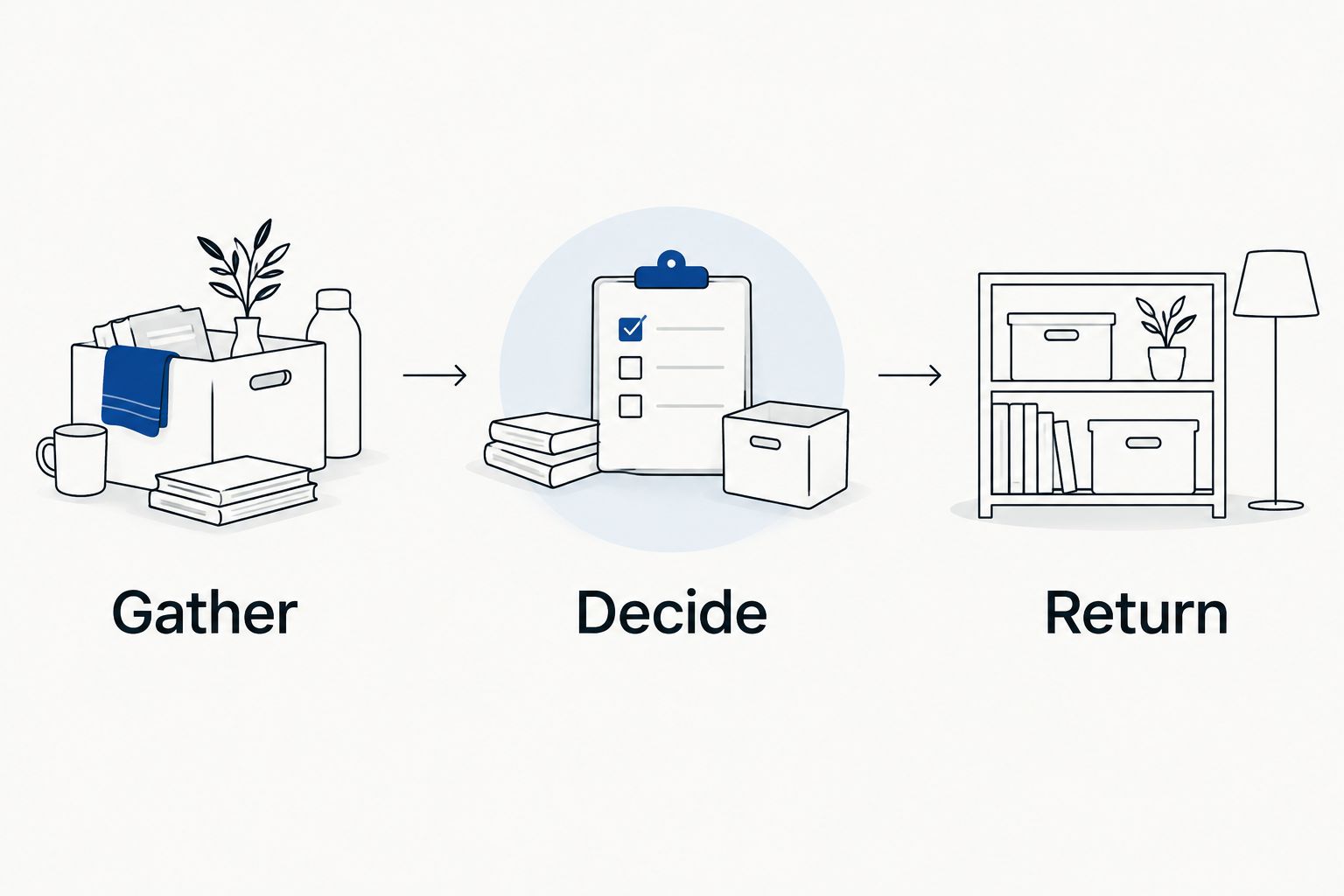
- In Add description, write three short phases: Gather, Decide, and Return.
- Under Gather, name the exact boundary. Example: collect only the shoes on and immediately beside the entryway bench.
- Under Decide, specify the decisions: keep here, return elsewhere, donate, or discard appropriately.
- Under Return, describe the finish: place everyday shoes back, return misplaced items, and move donations to your designated outgoing area.
- Select Save. When asked which recurring events to update, choose All events if these instructions should apply throughout the series.
Expected result: Future occurrences contain the same usable instructions, not just a vague organizing goal.
For a 15-minute example, allocate 2 minutes to Gather, 10 minutes to Decide, and 3 minutes to Return. Adjust those boundaries to the work; the key is reserving time to put things away before stopping.
Plan the missed-session fallback
A realistic routine needs an exception rule. Otherwise, an unfinished drawer becomes another repeating notification you learn to ignore.
- If you cannot attend a session, open that occurrence and select Edit event.
- Change its date or time to a realistic opening, then select Save.
- Choose This event when prompted so you move only the missed session rather than shifting the entire recurring routine.
- If you attended but did not finish, leave the recurring series unchanged. Create a separate, one-time event with a narrow title, such as Finish sorting entryway winter shoes.
- If the same time repeatedly fails, edit the series deliberately. Choose This and following events when you want a new schedule from that point onward.
Expected result: A single disruption changes a single occurrence; a genuine routine change updates future sessions.
For a manageable 2026 calendar, give every follow-up a specific boundary. “Finish the house” is not a fallback. “Return the hallway basket to its rooms” is.
Variant: schedule a shared household reset
Use an invited event when you need another person’s decisions or help. A shared wardrobe, children’s outgrown clothing, or mixed household paperwork should not become an excuse to discard someone else’s belongings.
- Create a separate event for the shared reset, or open an existing event and select Edit event.
- In Add description, name each person’s responsibility. For example: one person sorts their coats while another clears the shoe tray.
- Enter participants’ email addresses in Add guests.
- Confirm the date, time, and recurrence before selecting Save.
- Select Send when Google Calendar asks whether to send invitation emails.
- Check the responses in the event details. Discuss another time if a needed participant declines.
Expected result: Invited household members receive an event invitation with the same task description. You have scheduled participation, not transferred ownership of the entire project.
Best for: shared decisions, not routine reminders someone does not need. The advantage is a common appointment; the drawback is that calendar invitations cannot resolve disagreements about what stays.
Invite people only to the sessions that involve them. Adding guests to every personal reset creates more notifications without making the work clearer.
Troubleshooting
The reminder never appears
Open the event and confirm that a notification is attached to that event. Then check calendar notification settings, browser notification permissions, and device notification permissions where relevant. A browser notification also depends on the browser being allowed to deliver it; do not treat the presence of an event as proof that alerts are configured.
The routine appears on the wrong calendar
Open the event for editing and inspect the calendar dropdown. Move it to your home calendar, save the change, and choose the intended scope if it repeats. If the event seems missing, check that the home calendar is selected under My calendars before recreating it.
Moving one session shifts the whole routine
The recurring-event edit scope controls which occurrences change. When rescheduling a single interruption, choose This event. If you accidentally changed the series, edit it again to restore the regular schedule, then move only the exception.
The reminder arrives, but the task still feels overwhelming
Shrink the physical boundary in the title and description. Replace “declutter pantry” with “sort the snack basket,” and finish returning items before opening another category. If you consistently need more time, create a separate project session rather than stretching every maintenance reset.
Donations keep collecting by the door
Sorting and removal are different actions. Create a one-time follow-up for choosing a destination, checking its current acceptance rules, and arranging drop-off or collection. A Google Calendar event does not book a pickup; confirm the arrangement separately before treating it as scheduled.
Customize your workflow
Expand only after the first routine fits your life. Add another small zone, change an unrealistic time, or remove a reminder that duplicates something you already do reliably.
Stashsavvy’s home organization approach keeps the physical next step ahead of the storage purchase. During your next 2026 calendar review, check whether each event ends with items returned, removed, or assigned a specific follow-up—not simply moved into another pile.
For renters, begin with the belongings and surfaces you control rather than planning permanent alterations. For shared homes, include an “ask the owner” category so a short reset does not turn into an argument about someone else’s possessions.
Keep the useful appointment; remove the unnecessary administration. You do not need a separate calendar system for every room to maintain a clear kitchen counter.
FAQ
How do I use Google Calendar to declutter my home?
Create a timed, recurring event for one small area and put the sorting instructions in its description. Add a reminder, reserve time to return items, and schedule unfinished work separately.
What’s the best length for a decluttering calendar event?
Start with a suggested 15-minute event for a small drawer, shelf, or surface. Increase the time or reduce the task boundary based on what you can finish without leaving a larger mess.
Will Google Calendar automatically reschedule unfinished decluttering?
No, an ordinary calendar event does not detect unfinished physical work or automatically find another opening for it. Move the occurrence yourself or create a separate follow-up event.
Should I use recurring events or one-time events for decluttering?
Use recurring events for small maintenance routines and one-time events for defined projects or unfinished work. Recurrence reserves time, but it does not record completion.
Can I invite my household to a decluttering session?
Yes, add household members through Add guests and send the event invitation. Explain each person’s responsibility in the description and check their responses before relying on their participation.
Do I need to buy organizers before starting this workflow?
No, start by deciding what belongs in the space and use containers you already have for sorting. Stashsavvy recommends defining the storage problem before choosing additional organizers.
Should I replace my decluttering calendar every year?
No, you can keep using the same calendar after 2026. Rename a year-specific calendar and review its recurring events instead of rebuilding a routine that still works.
One last thing
Schedule the departure, not just the sorting. A bag marked for donation still occupies your home until it leaves. Before ending a reset, give that bag a destination and a separate removal appointment; Stashsavvy’s practical decluttering guidance is most useful when the final step creates space rather than another holding area.
Related guides
- Plan donation pickup follow-ups
- Connect Google Photos to your digital declutter routine
- Kitchen cabinet organization for small kitchens